



LinkedIn QR code: how to find it, share it and scan it at events
Where to find your LinkedIn QR code in the app, how to scan someone else's code at a trade show, and how to turn a scan into a real lead.
The short answer: your LinkedIn QR code is in the LinkedIn mobile app. Tap the search bar, then the QR code icon on the right, and your code is on the "My Code" tab. To scan someone else, open the same screen, switch to "Scan" and point the camera at their code. Their profile opens and you can connect.
This is the fastest way to swap details with someone who has no business card. But a LinkedIn connection is not a lead yet. Below you will find the steps, ways to share your code at a booth, and what to do so the contact does not get lost after the event.
What is a LinkedIn QR code?
A LinkedIn QR code is a square code that opens your LinkedIn profile when someone scans it. LinkedIn added it to its mobile app in June 2018, to help people turn offline talks into online connections. LinkedIn suggested putting the code on event materials, brochures and conference badges (Marketing Dive).
It works almost everywhere, because almost everyone at a business event has a profile. LinkedIn says it has more than 1.4 billion members.
How to find your LinkedIn QR code
Step 1: Open the LinkedIn app
Use the app on your iPhone or Android phone. The QR code is in the mobile app, not on the desktop website (RocketLink guide).
Step 2: Tap the search bar
It is at the top of the home screen.
Step 3: Tap the QR code icon
You find it on the right side of the search bar.
Step 4: Open "My Code"
Your personal code is on this tab. Show it on your screen, or save it as an image.
How to scan a LinkedIn QR code
Open the same QR code screen in the LinkedIn app and switch to the "Scan" tab. Point your camera at the other person's code. Their profile opens with a button to connect (RocketLink guide). The normal camera app on most phones can also read the code and open the link.
Where to share your LinkedIn QR code at events
| Place | How to use it | Good to know |
|---|---|---|
| Your phone screen | Open "My Code" and let the other person scan it. | The fastest option in a short talk. |
| Booth graphics or a table sign | Print the code with a short line, such as "Connect with our team". | Use one person's code, or a company page link instead. |
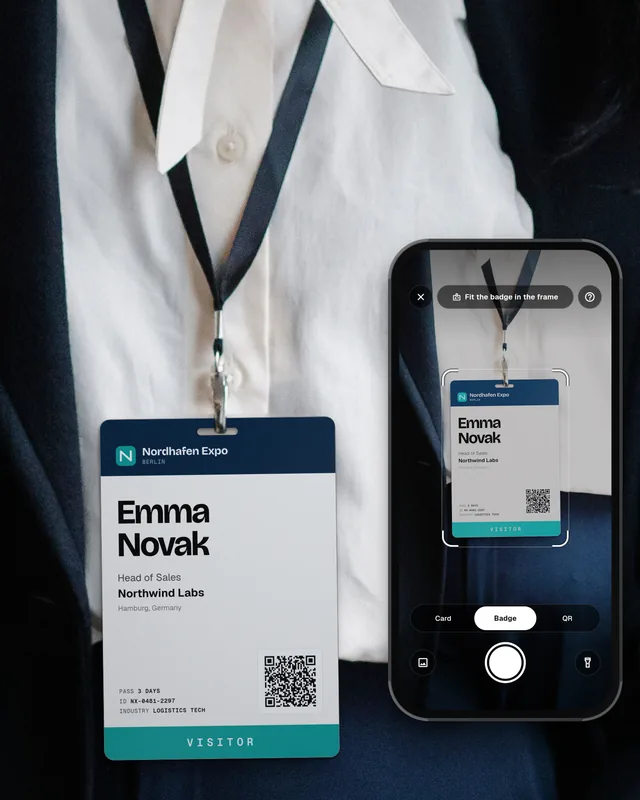
| Your badge holder | Put a small printed code behind your event badge. | Do not cover the event's own badge code. |
| Slides at a talk | Show the code on your last slide. | Leave it on screen long enough to scan. |
| Your business card | Print the code on the back. | Useful for people who like paper. |
A LinkedIn connection is not a lead
A scan gives you a profile, and that is all. You do not get the work email, the phone number or a note about what you talked about. After a busy show day, you have twenty new connections and no memory of who wanted a demo. Sales cannot follow up from that.
- Add a note at once. Write one line about the talk: the need, the product, the next step.
- Get a way to reach them. Ask for a business card or an email, or use a tool that finds the work email for you.
- Put it in your CRM with the event name. Then you can follow up and count what the event brought. Our guide on trade show ROI shows why this tag matters.
- Follow up within a day or two. See our trade show follow-up email templates.
Remember GDPR too. A LinkedIn connection does not mean the person agreed to get your marketing emails. Our GDPR guide for trade show leads explains what you can send and when.
LinkedIn QR code vs business card vs digital business card
| LinkedIn QR code | Paper business card | Digital business card | |
|---|---|---|---|
| What the other person gets | Your profile | Name, company, email, phone | Your contact, ready to save, plus links |
| Email and phone included | No | Yes | Yes |
| Updates when you change job | Yes | No | Yes |
| Works without the LinkedIn app | Opens in the browser, but full use needs an account | Yes | Yes |
Many people use all three. To learn more, read what is a digital business card and our guide on how to capture leads at a conference without a booth.
Turn LinkedIn QR scans into leads without typing
With Swopi, you scan LinkedIn QR codes, event badges and paper business cards in one app on your own phone. Leads without typing. Swopi AI enrichment finds the missing work email and phone from 20+ data providers, and AI follow-up drafts the email from your note. Each lead goes to HubSpot, Salesforce, Pipedrive or 5,000+ CRMs and apps, with the event name attached. See pricing to try it at your next event.
Where is my QR code on LinkedIn?
In the LinkedIn mobile app. Tap the search bar at the top, then the QR code icon on the right. Your code is on the "My Code" tab.
Can I get my LinkedIn QR code on desktop?
No, the QR code is only in the mobile app. On a computer you can share your profile link instead, or make a QR code from that link with any QR code tool.
How do I scan someone's LinkedIn QR code?
Open the QR code screen in the LinkedIn app and switch to the "Scan" tab, then point your camera at their code. Your phone camera app can usually open it too.
Does a LinkedIn QR code share my email or phone number?
No. The code opens your profile. The other person only sees what your profile shows them.
How do I add a LinkedIn QR code contact to my CRM?
Save the profile, find the work email, add a note and the event name, then add the contact to your CRM. A lead capture app can do these steps for you when you scan the code.