


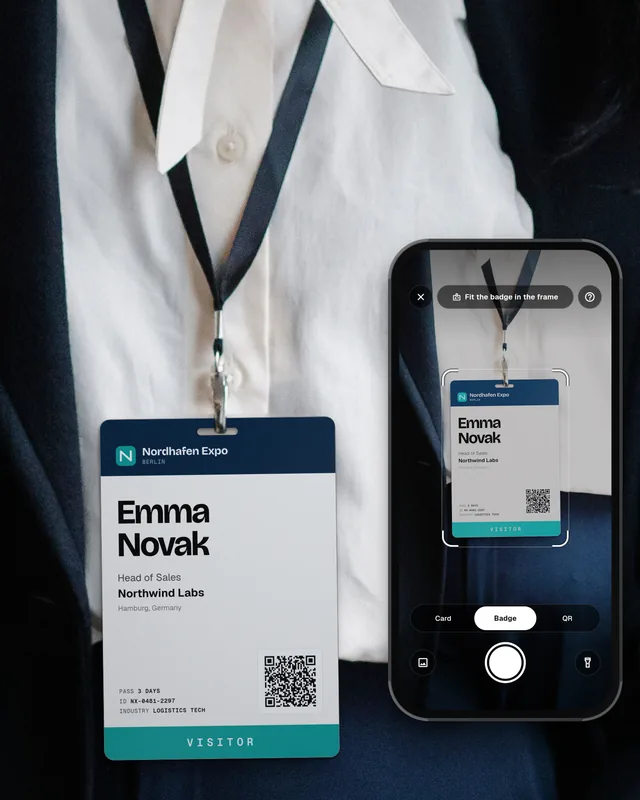

How do I see existing CRM history when I scan a badge?
How to see CRM history when scanning a badge at a trade show: who owns the contact, open deals and last touch, before you start the booth talk.
The short answer: To see CRM history when scanning a badge, you need a lead capture app that is connected to your CRM and looks the person up right after the scan. A rented organizer scanner only reads the badge, so it cannot tell you if the visitor is already a customer. Without a connected app, the only way is to search for the person by hand in your CRM mobile app while they wait.
This guide shows what CRM history is worth seeing at the booth, three ways to get it, and how to set it up before the show.
Why CRM history matters at the booth
- You do not pitch a customer like a stranger. Asking a current customer "What does your company do?" is a bad start.
- You respect the lead owner. If a rep already works with this person, the booth team should hand over, not start a new thread.
- You talk about the open deal. If there is a deal in progress, the booth talk can move it forward.
- You avoid duplicate records. A scan that matches an existing contact should update it, not create a second one.
What CRM history to show when scanning a badge
Booth staff have seconds, not minutes. Show a few fields, not the full record. These are the ones that change what you say:
| What to show | Why it helps at the booth | Where it lives in the CRM |
|---|---|---|
| Customer, lead or new | Decides the first sentence | HubSpot: the Lifecycle stage property, with default stages from Subscriber to Customer and Evangelist (HubSpot). Salesforce: a Lead record, or a Contact on an Account |
| Owner | Tells you who to hand the lead to | The owner field on the contact or lead |
| Open deals | Gives you a topic to move forward | Deals in HubSpot and Pipedrive, Opportunities in Salesforce |
| Last contact | Shows if someone already followed up | The activity timeline on the record |
Three ways to see CRM history at a trade show
| Way | How it works | Good for | Weak spot |
|---|---|---|---|
| Search by hand in the CRM app | Scan the badge, then type the name into your CRM mobile app | A few key meetings | Slow at a busy booth, and it needs a data connection |
| Printed or shared list | Before the show, export customers and open deals and give the list to the booth team | Teams with no CRM-connected app | Old by day two, and hard to search during a talk |
| Lead capture app with CRM lookup | The app checks the CRM after each scan and shows the match on the phone | Busy booths and many shows a year | Needs to be set up and tested before the show |
The HubSpot mobile app lets you search records and open the activity timeline and the associated deals, but records need an internet or data connection to view (HubSpot). Hall networks are often weak, so test this at your booth before doors open.
How to set it up before the show
Step 1: Connect the lead capture app to your CRM
Do it at the office, not at the booth. See our guide on how to scan event badges into your CRM.
Step 2: Pick the fields booth staff may see
Status, owner, open deals and last contact are enough. Keep deal values and private notes for the sales team.
Step 3: Agree on what to do with each match
Customer: thank them and ask what is new. Open deal: note the next step for the owner. Owned lead: tag the owner. New person: qualify as usual with your lead scoring rules.
Step 4: Test with real records
Scan a test badge for a known customer and for a new person. Check that the right match shows up and that no duplicate is created.
Step 5: Brief the team
Tell everyone what each status means and who gets which lead. Our guide on trade show booth staffing covers roles at the booth.
Tips for using CRM history in the booth talk
- Do not read the record out loud. Use it to ask a better question, like "How is the rollout going?"
- Do not show the screen to the visitor. It may show other people or deal details.
- Write a note for the owner. One line on what the person asked for. The owner sees it in the CRM after the show.
- Invite known accounts before the show. Customers and open deals are the best people to book meetings with. See our trade show invitation email templates.
See what your CRM knows, without typing
With Swopi, your team scans event badges, business cards and QR codes on their own phones. Scan someone and Swopi shows if they are already a lead or a customer, who owns them, their open deals and the last contact, straight from HubSpot, Salesforce or Pipedrive. New leads go to your CRM in native fields with no duplicates, AI enrichment adds missing details from 20+ data providers, and AI follow-up drafts the email. Leads without typing, and no more guessing who you are talking to. See pricing.
Can a badge scanner show if someone is already in my CRM?
Only if the scanner app is connected to your CRM and looks the person up after the scan. A rented organizer scanner reads the badge but does not know your CRM.
How do I check if a trade show visitor is an existing customer?
Use a lead capture app with a CRM lookup, or search for the person in your CRM mobile app. Before the show, you can also give the booth team a list of customers and open deals.
What CRM data should booth staff see?
Keep it short: customer, lead or new, the owner, open deals and the last contact. Deal values and private notes can stay with the sales team.
Will scanning a badge create a duplicate in my CRM?
It can, if the app does not match the scan to the existing record. Test with a known customer before the show and check that the record is updated, not copied.
Do I need internet to see CRM history at the booth?
Yes. The CRM lookup needs a connection. The HubSpot mobile app, for example, needs a data connection to view records, so test the hall network early.