


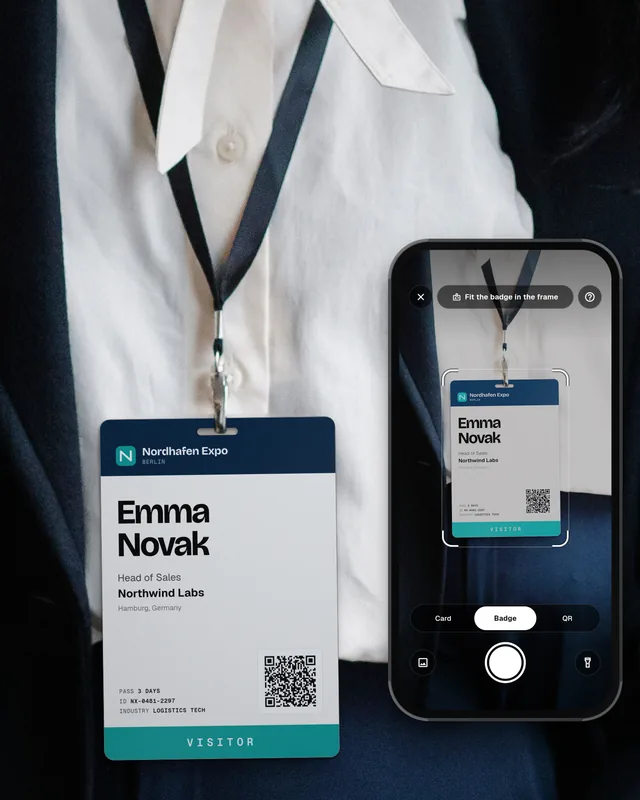

What should you do with badge photos after a trade show?
What to do with badge photos after a trade show: turn them into CRM leads fast, copy the text with your phone, add the event name, delete the photos.
The short answer: Turn your badge photos into CRM leads within a day or two after the show, while you still remember each talk. Put all photos in one place, copy the name and company from each photo instead of typing it, add the booth note and the event name, and import the list into your CRM. When every lead is in the CRM, delete the photos from personal phones. At the next show, skip the photo: scan the badge with a lead capture app like Swopi, and the lead lands in your CRM with your note, so there is nothing to type.
Many teams skip the rented scanner and take a photo of each badge instead. It is free on the day. Exhibitors tell us the real cost comes later: an evening spent typing in badge photos and notebook notes. This guide shows how to clear the pile fast, what to keep, and how teams that use Swopi avoid the pile at their next show.
Why badge photos turn into lost leads
- They sit in personal camera rolls. Each person on the booth team has some of the photos, mixed with family pictures and slides from talks.
- The note is somewhere else. The badge photo shows a name and a company. What the visitor asked for is in a notebook, a notes app or in someone's head.
- A badge is not a full lead. Most badges show a name, a company and sometimes a job title. An email address or phone number is often missing.
- Every day costs you. The longer the photos wait, the less you remember about each talk, and the later your first email goes out.
What to do with badge photos after a trade show: 6 steps
Step 1: Collect every photo on the last day
Ask each person on the booth team to put their badge photos in one shared folder or album before they leave the show. One place, one list.
Step 2: Match each photo to its note
Go through the photos in order. Next to each one, write the note from the notebook: what they need, how hot the lead is and what you promised to send.
Step 3: Copy the text instead of typing it
On an iPhone, open the photo, touch and hold a word on the badge, then tap Select All and Copy. Paste it into your sheet. Apple calls this Live Text. It needs an iPhone XS, iPhone XR or later with iOS 15 or later (Apple Support). It saves typing letters, but you still paste every badge one by one. With Swopi you scan the badge at the booth instead, so this step does not exist.
Step 4: Build one sheet with fixed columns
Use one row per person: first name, last name, company, job title, email, phone, note, event name and lead owner. Leave a cell empty rather than guessing an email.
Step 5: Import the sheet into your CRM
Add the event name to every row so you can find these leads later. HubSpot explains how to set up an import file, and our guide on how to import trade show leads into HubSpot covers the event tag and the owner. Teams that scan with Swopi skip the import: each lead syncs to HubSpot, Salesforce or another CRM with the event name during the show.
Step 6: Delete the photos from personal phones
Once every lead is in the CRM, the photos have done their job. Delete them from personal camera rolls and from the shared folder, so contact data does not live in places nobody manages.
Four ways to turn badge photos into leads
Type each badge by hand
- What you get
- Name and company from the badge
- Watch out for
- Slow, typos, and the work lands on one person after the show
Copy text from the photo with your phone
- What you get
- Name and company without typing letter by letter
- Watch out for
- You still paste each one, match the note and find the email
Ask the organizer to process badge photos
- What you get
- Leads in the organizer's export, if the show offers it
- Watch out for
- At SEMA, leads from badge images are available within 14 days after the event and carry a data services fee (SEMA lead retrieval form)
Scan the badge with Swopi at the next show
- What you get
- A full lead in your CRM with the note and the event name, during the show. Swopi AI adds missing details like email and job title
- Watch out for
- Install the app on your team's phones and connect your CRM before the show
| Way | What you get | Watch out for |
|---|---|---|
| Type each badge by hand | Name and company from the badge | Slow, typos, and the work lands on one person after the show |
| Copy text from the photo with your phone | Name and company without typing letter by letter | You still paste each one, match the note and find the email |
| Ask the organizer to process badge photos | Leads in the organizer's export, if the show offers it | At SEMA, leads from badge images are available within 14 days after the event and carry a data services fee (SEMA lead retrieval form) |
| Scan the badge with Swopi at the next show | A full lead in your CRM with the note and the event name, during the show. Swopi AI adds missing details like email and job title | Install the app on your team's phones and connect your CRM before the show |
Can the show organizer turn badge photos into leads?
Some can. Organizers that sell lead retrieval sometimes accept badge photos or handwritten badge IDs when a scan failed. The SEMA Show 2026 form is a clear example: those leads come up to 14 days after the show and cost an extra data services fee (SEMA). At SEMA this rule sits in the terms of the lead retrieval order form, so plan for it when you order. Read your exhibitor manual before you rely on it. Our guide to lead retrieval cost compares what organizers charge.
What to keep and what to delete
- Keep in the CRM: name, company, job title, the email and phone you confirmed, the booth note, the event name and the lead owner.
- Keep for a short time: the shared photo folder, only until every row is checked in the CRM.
- Delete: badge photos in personal camera rolls, chat threads and personal cloud backups.
- Read the rules of the show: organizers can limit how you use attendee data. Check the terms in your exhibitor manual before you share leads with a partner or an agency.
Next show: scan the badge, skip the photo
A badge photo is a lead you still have to type. With Swopi, your team scans badges, business cards and QR codes on their own phones and adds a short note at the booth. Leads without typing. Swopi AI adds missing details from 20+ data providers and each lead lands in your CRM with the event name. It works with 5,000+ CRMs and apps, including HubSpot and Salesforce. See how the badge scanner works, read how to scan event badges into your CRM, or see how Swopi compares.
One license. Unlimited users, scans and events. No per lead fees. No sales team to pay for. You pay for the software. Send us a badge from your last show and watch it land in your CRM on a short call.
Is it OK to take photos of badges at a trade show?
Many exhibitors do it when they have no scanner. Ask the visitor first, use the photo only for follow-up, and delete it once the lead is in your CRM. Check your show's exhibitor manual for rules on attendee data.
How do I get text from a badge photo without typing?
On an iPhone XS, iPhone XR or later with iOS 15 or later, open the photo in Photos, touch and hold a word, then tap Select All and Copy. Paste the text into your sheet or CRM.
How fast should I follow up with leads from badge photos?
As soon as you can, ideally within a day or two of the show while the talk is fresh. Import the leads first, then send the first email. Our trade show follow-up email guide has examples.
Can the event organizer give me leads from badge photos?
Some organizers can. At SEMA, leads from badge images and handwritten badge IDs are available within 14 days after the event and carry a data services fee. Check your exhibitor manual.
What is better than taking photos of badges?
Scanning the badge with a lead capture app on your phone, such as Swopi. The lead goes to your CRM with the note and the event name during the show, so there is nothing to type after it.